Motorcycle · BMW F 800 GS (2025)
DMD2 Remote - BMW Sync box & Silverfox H1
| DMD2 docs remote controller | |
| [Silverfox H1 plus - a game changer in handling](/motorrad/silverfox-h1-plus-gamechanger-im-handling/ "Silverfox H1 plus - a game changer in handling") | |
| [Navigation option 2 - DMD2 Nor7e](/motorrad/navigation-variante-2-dmd2-nor7e/ "Navigation option 2 - DMD2 Nor7e") | |
| I am writing this article in two languages because the Facebook DMD2 Support Group is available worldwide and the question of how to configure the controllers often came up there. | I am writing this article in two languages because the Facebook DMD2 Support Group is available worldwide and questions about configuring the controllers have often been raised there.
- translated by deepl free version - |
| *The pictures always apply to both languages :-)* | *The pictures are valid for both languages. :-)* |
| Motivation
At first I only had the BMW Sync box installed. Since I always have a headset in my helmet, it was impossible to use the zoom function without changing the headset volume. Volume is active in the main menu of the BMW TFT. So there is no area in the TFT that stays without action when the Wonderwheel is turned. Quite contrary to the user manual. I was also bothered by switching between ZOOM and PAN mode. | Reason
To begin with, I’d only installed the BMW Sync box. As I always have a headset in my helmet, it wasn’t possible to use the zoom function without adjusting the volume on the headset. Volume control is active in the BMW TFT’s main menu. This means there is no area on the TFT that remains inactive when the Wonderwheel is turned. This is completely at odds with the user manual. I also found switching between ZOOM and PAN modes annoying. |
| First problems and irritations
There were always conflicts when running both controllers. Whether one disappeared completely, depending on the connection settings, some functions were unavailable, or the map flickered when an action was selected. I have also learned in the meantime that the Silverfox does not support all functions and never will. For example, the remote menu is only available for DMD2 controller hardware (e.g. the BMW Sync box). At the beginning I also tried connecting one of the controllers via cable and the other via Bluetooth. In that case the BT controller was always inactive. The silverfox H1 in F1 mode with the incontrol app does not support the Follow button. With the controllers connected there was no virtual keyboard on the device. After a long search I finally found the following configuration | Initial problems and frustrations
There were always issues when using both controllers. Sometimes yours would disappear completely, depending on the connection settings; sometimes certain functions wouldn’t be available; or the screen would flicker when an action was selected. I’ve also learnt in the meantime that the Silverfox doesn’t support all functions and never will. For example, the remote menu is only available for DMD2 controller hardware (e.g. the BMW Sync box). At the start, I also tried connecting one of the two controllers via cable and the other via Bluetooth. In that case, the Bluetooth controller was definitely inactive. The silverfox H1 in F1 mode, when used with the incontrol app, does not support the Follow button. When using the controllers, there was no virtual keyboard displayed on the device. After a long search, I finally found the following configuration |
| Hardware used
DMD2 Nor7e with DMD2 (Next gen) BMW Sync box Silverfox H1 plus | Hardware used
DMD2 Nor7e with DMD2 (Next gen) BMW Sync box Silverfox H1 plus |
| Connection and apps
Connect both controllers to the DMD2 via Bluetooth Turn off the silverfox incontrol app in the settings Operate the silverfox controller in F2 mode Install a virtual keyboard. I chose the “classic keyboard” and bought the lifetime Premium version. | *Connection and apps*
Connect both controllers to the DMD2 via Bluetooth Disable the silverfox incontrol app in the settings Run the silverfox controller in F2 mode Install a virtual keyboard. I chose the ‘classic keyboard’ and purchased the lifetime Premium version. |
| 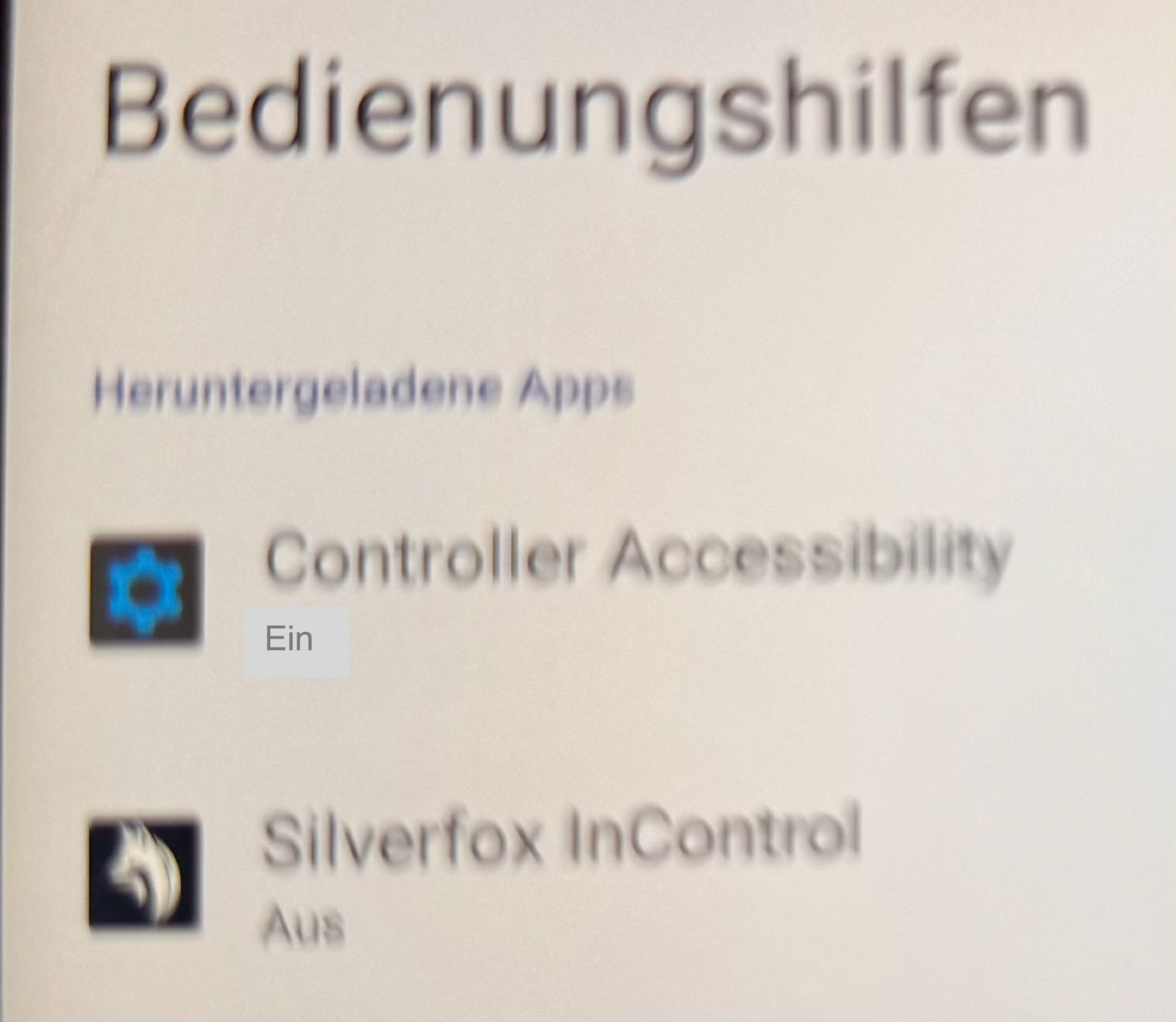 |
Intended controller functions
| Purpose of the controller functions
|
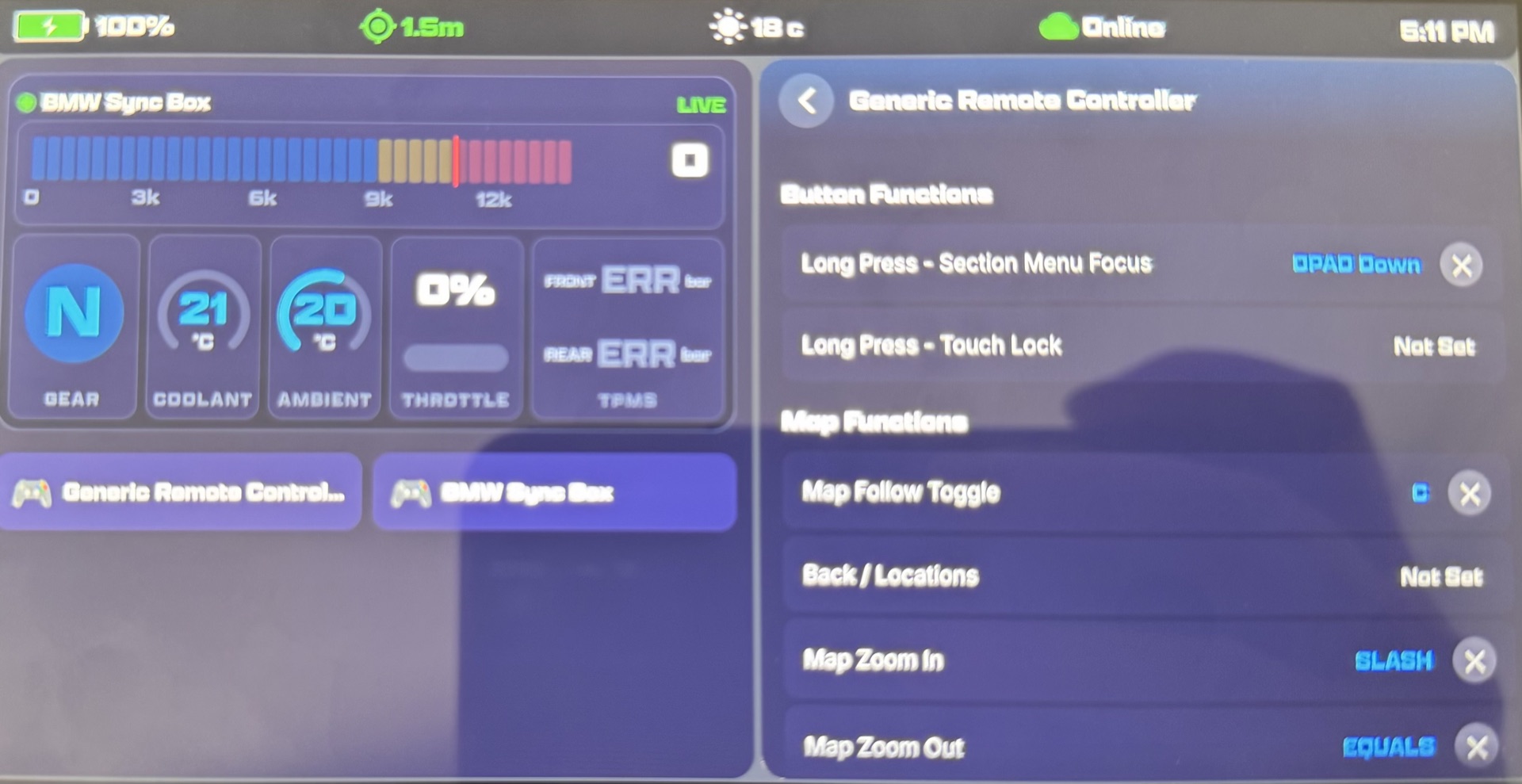
| Silverfox (Generic Remote Controller) | |
| Map PAN/Tilt actions via the jog shuttle
| Map PAN/Tilt actions via the jog shuttle |
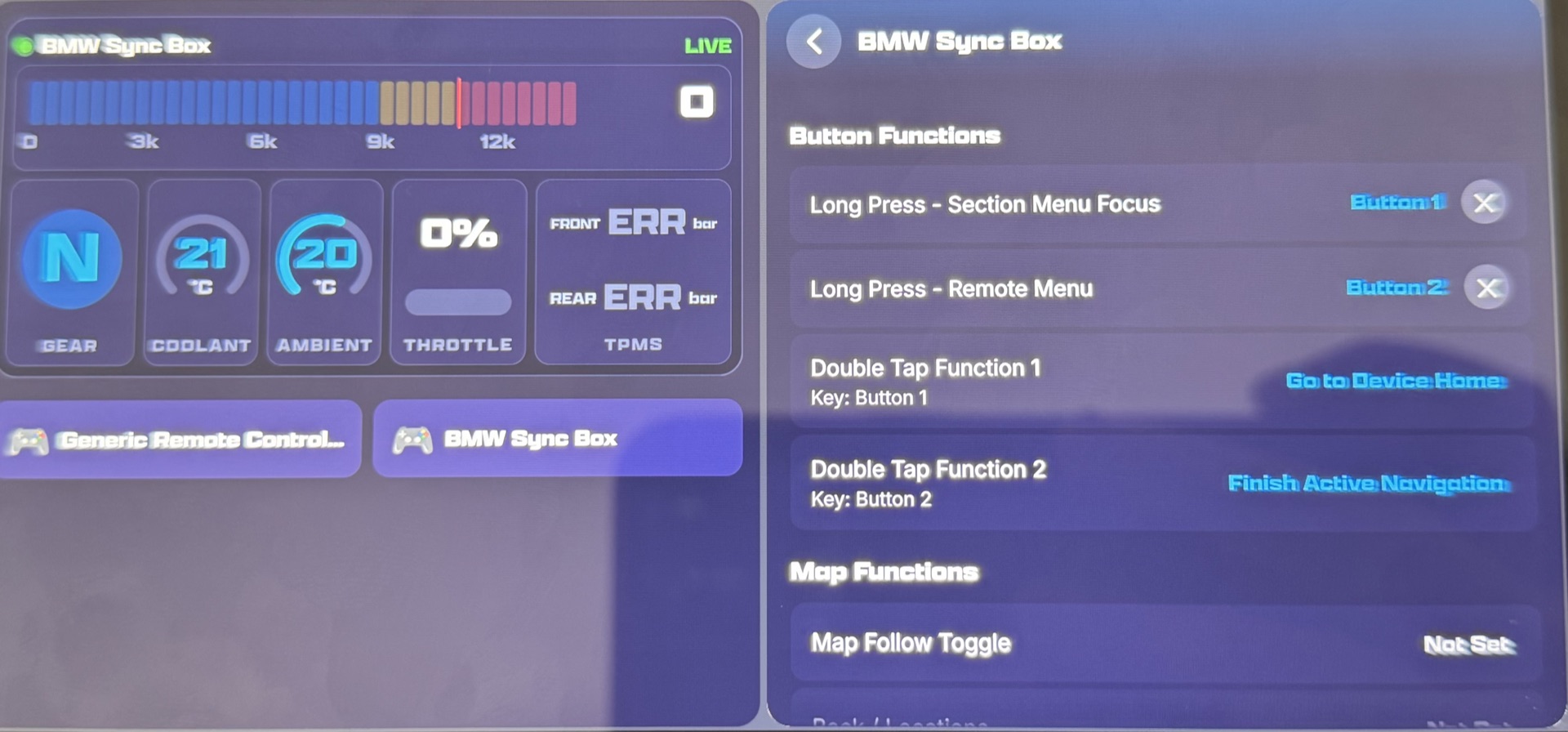
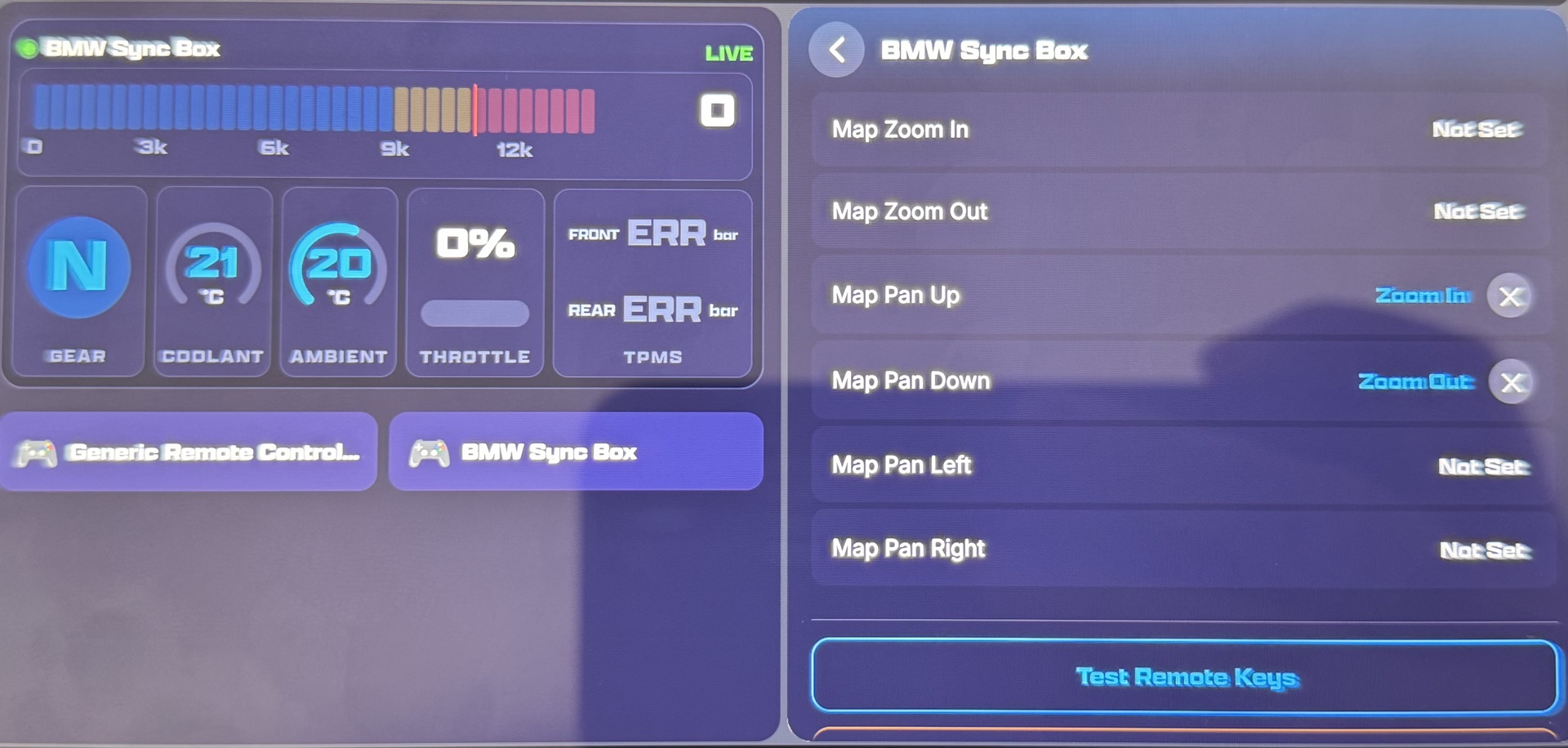
| BMW Sync Box | |
| The "double-tap functions" can of course be set to your own taste.
| The "double-tap functions" can, of course, be customised to suit your preferences.
|
| Virtual keyboard | |
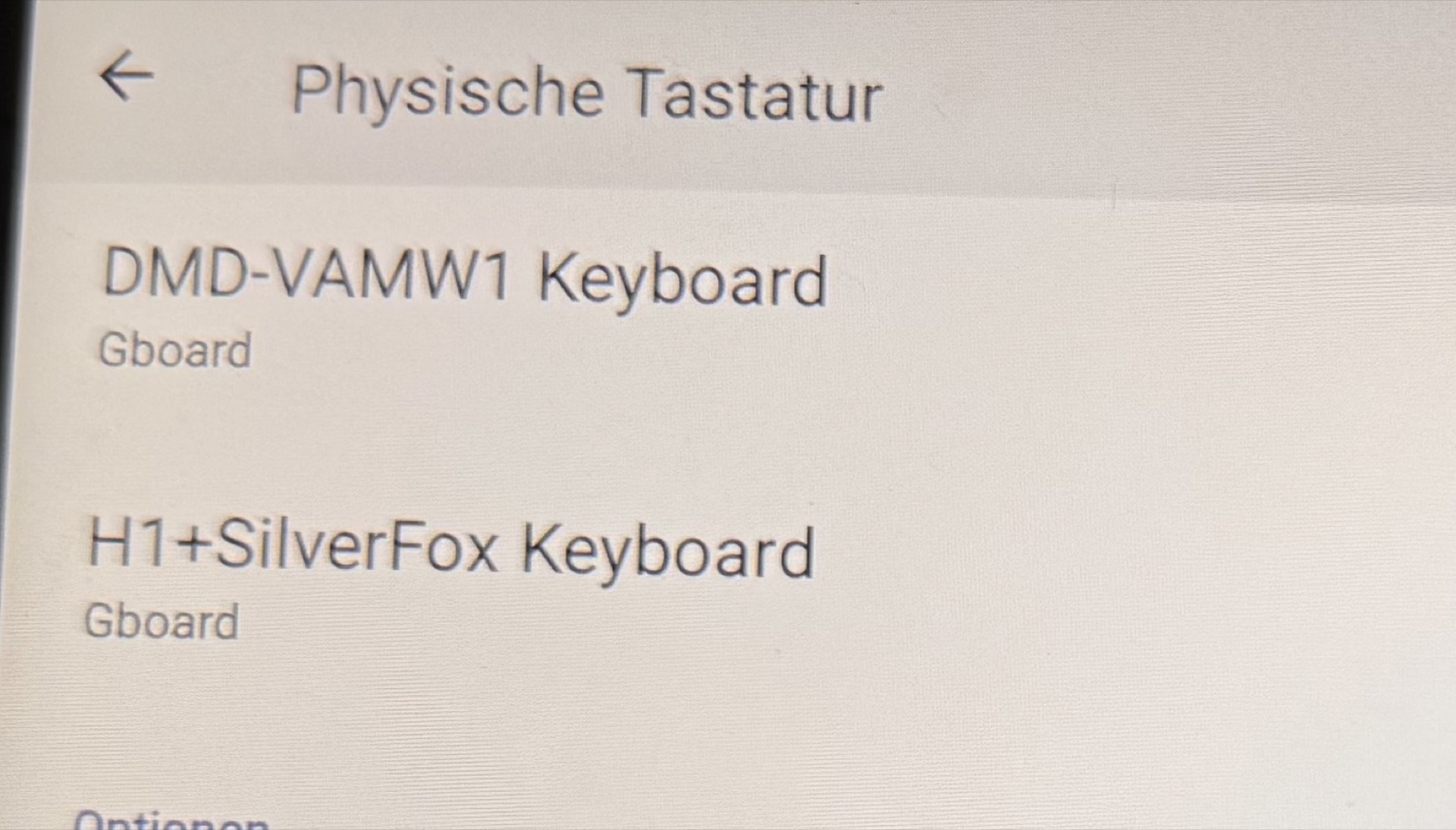
| I was not able to activate the GBOARD virtual keyboard. But since I definitely didn't want to do without one, I installed an alternative from the Play Store.
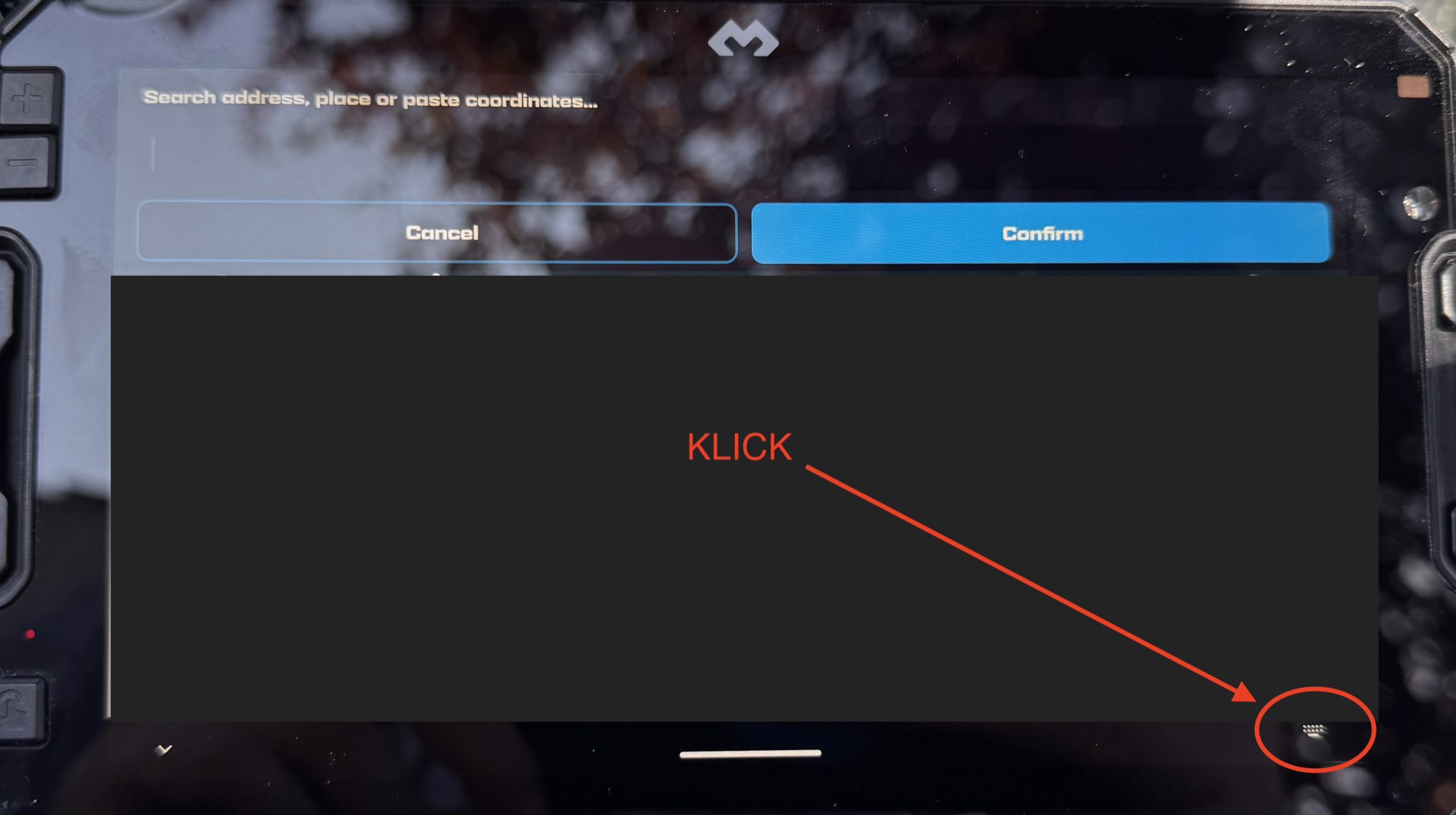
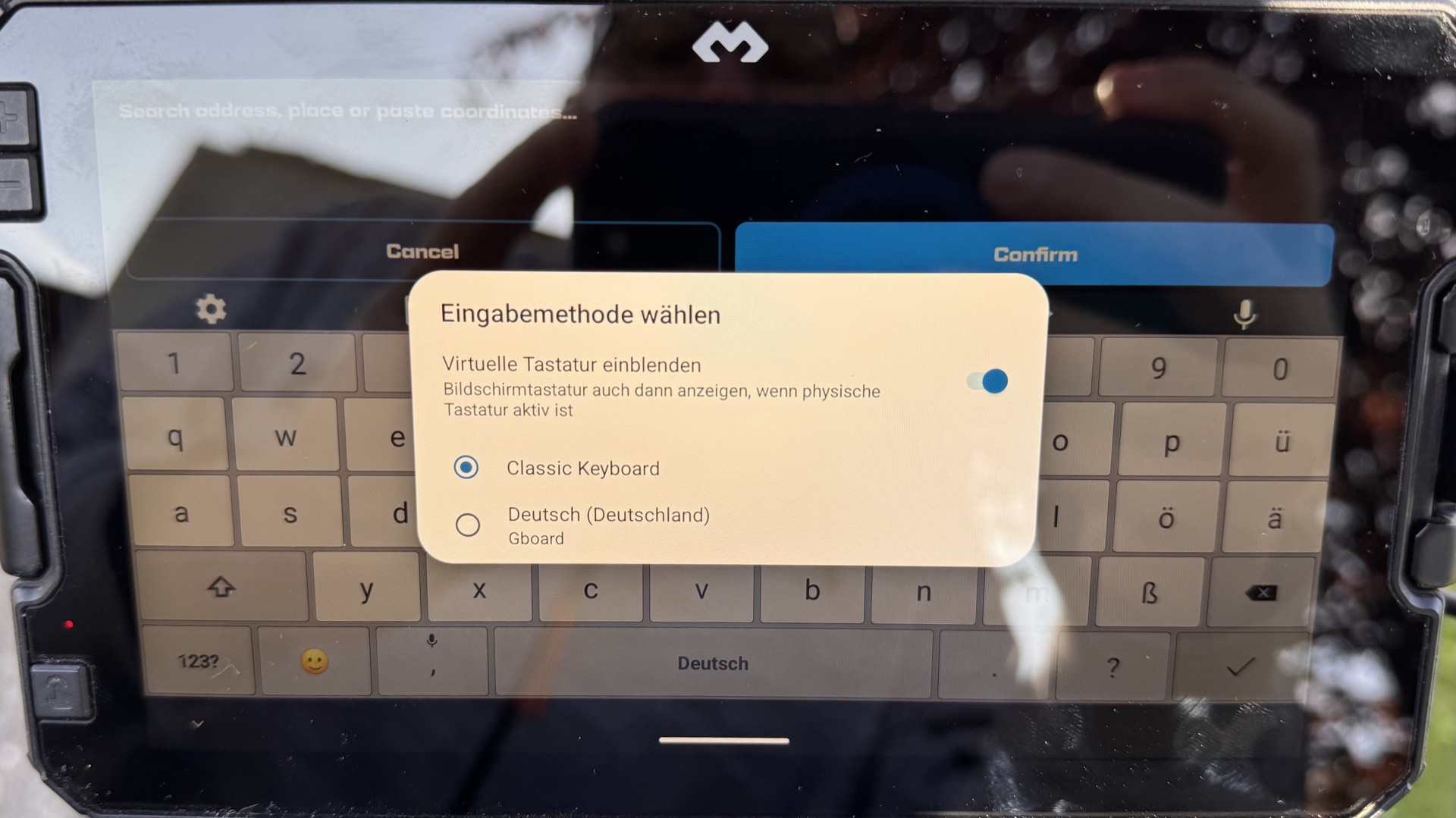
In my case the classic keyboard with large buttons, which I then bought for ~40€ as a lifetime premium app. By the way, GBOARD could not be activated either when I connected a USB keyboard to the Nor7e as a test. After installation it has to be set once as the virtual keyboard. To do so, open an input field and tap the keyboard icon at the bottom right. There, enable the first option and select the alternative keyboard. Note: The Classic Keyboard has to be configured via the settings. The language also has to be installed first unless you want English. After configuration, “force stop” it and open it again in an input field. | I wasn’t able to activate the GBOARD virtual keyboard. However, as I definitely didn’t want to do without it, I installed an alternative from the Play Store.
In my case, it was the Classic Keyboard with large buttons. I then purchased this as a lifetime premium app for around €40. Incidentally, I couldn’t activate GBOARD either when I connected a USB keyboard to the Nor7e for testing purposes. After installation, you need to set it as the virtual keyboard once. To do this, open an input field and click on the keyboard icon in the bottom right-hand corner. There, select the first option and choose the alternative keyboard. Note: The Classic Keyboard must be configured via the settings. The language must be installed first if you do not want to use English. After configuration, ‘force close’ the app and open it again in an input field. |
|  |