DMD2 Remote - BMW Sync box & Silverfox H1
|
|
|
|
|
|
| Ich schreibe diesen Artikel, zweisprachig, da die Facebook DMD2 Support Gruppe weltweit verfügbar ist und dort oft die Frage nach der Konfiguration der Controller kam. |
I am writing this article in two languages because the Facebook DMD2 Support Group is available worldwide and questions about configuring the controllers have often been raised there.
- translated be deepl free version - |
| Die Bilder gelten immer für beide Sprachen :-) | The pictures are valid for both languages. :-) |
|
Motivation
Ich hatte zu Anfang nur die BMW Sync box installiert. Da ich immer ein Headset im Helm habe war es nicht möglich die Zoom Funktion zu nutzen ohne die Lautstärke im Headset zu ändern.
Ausserdem hat mich das Umschalten zwischen ZOOM und PAN Modus gestört. |
Reason To begin with, I’d only installed the BMW Sync box. As I always have a headset in my helmet, it wasn’t possible to use the zoom function without adjusting the volume on the headset. Volume control is active in the BMW TFT’s main menu. This means there is no area on the TFT that remains inactive when the Wonderwheel is turned. This is completely at odds with the user manual.
I also found switching between ZOOM and PAN modes annoying. |
|
|
|
|
Erste Probleme und Irritationen
Es gab immer Konflikte im Betrieb beider Controller. Sei es dass deiner komplett weg war, je nach Verbindungseinstellung, dass einige Funktionen nicht verfügbar waren oder die Karte flackerte wenn eine Aktion ausgewählt wurde.
Auch habe ich inzwischen gelernt, dass der Silverfox nicht alle Funktionen unterstützt und auch nicht wird. So ist das Remote Menü nur für DMD2 Controller Hardware verfügbar (z.b. die BMW Sync box)
Ich habe am Anfang auch versucht eine der beiden Controller über Kabel, den andren via Bluetooth zu verbinden. Dabei war auf jeden Fall der BT Controller inaktiv.
Der silverfox H1 in F1 Mode mit der incontrol App unterstützt den Follow Button nicht.
Nach langem Suchen fand ich dann die nachfolgende Konfiguration |
Initial problems and frustrations There were always issues when using both controllers. Sometimes yours would disappear completely, depending on the connection settings; sometimes certain functions wouldn’t be available; or the screen would flicker when an action was selected.
I’ve also learnt in the meantime that the Silverfox doesn’t support all functions and never will. For example, the remote menu is only available for DMD2 controller hardware (e.g. the BMW Sync box).
At the start, I also tried connecting one of the two controllers via cable and the other via Bluetooth. In that case, the Bluetooth controller was definitely inactive. The silverfox H1 in F1 mode, when used with the incontrol app, does not support the Follow button.
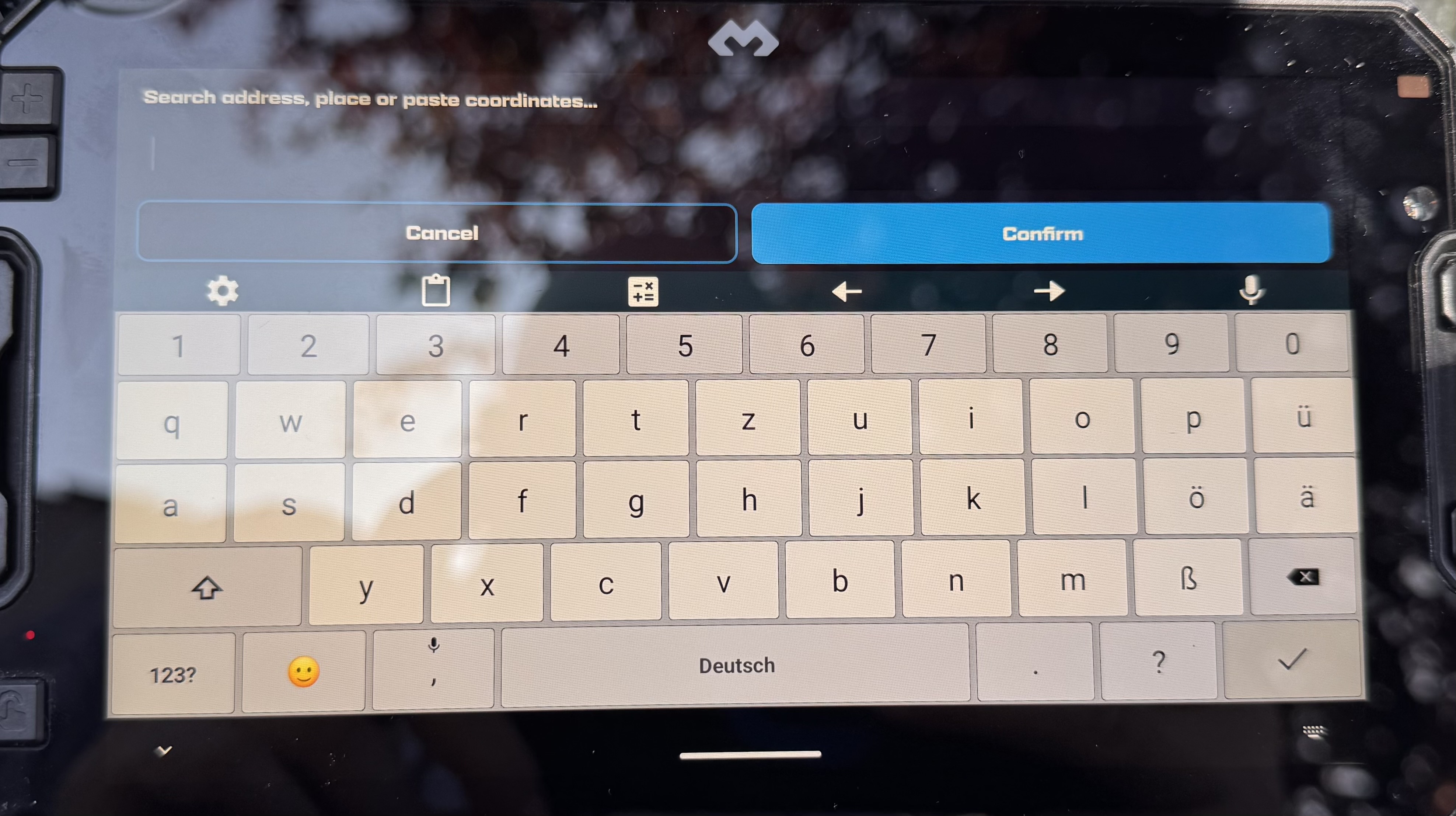
When using the controllers, there was no virtual keyboard displayed on the device.
After a long search, I finally found the following configuration |
|
|
|
|
verwendete Hardware
DMD2 Nor7e mit DMD2 (Next gen) BMW Sync box Silverfox H1 plus |
Hardware used
DMD2 Nor7e with DMD2 (Next gen) BMW Sync box Silverfox H1 plus |
|
|
|
|
Verbindung und Apps
Beide Controller über Bluetooth mit dem DMD2 verbinden
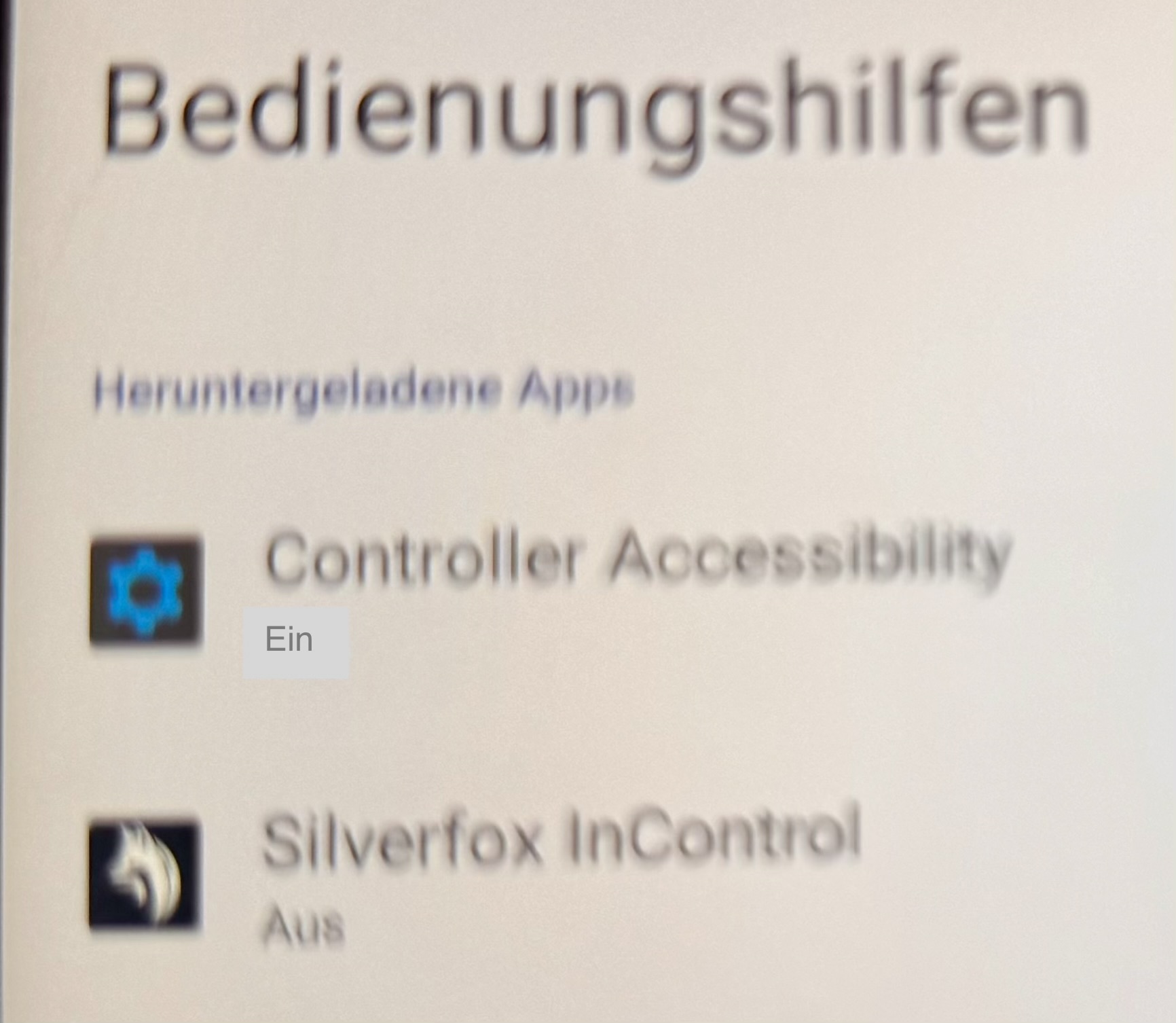
Die silverfox incontrol App in den Einstellungen ausschalten
Den silverfox Controller im F2 Modus betreiben
Eine virtuelle Tastatur installieren. Ich habe das "classic keyboard" gewählt und die lifetime Premium Version gekauft. |
Connection and apps
Connect both controllers to the DMD2 via Bluetooth
Disable the silverfox incontrol app in the settings
Run the silverfox controller in F2 mode
Install a virtual keyboard. I chose the ‘classic keyboard’ and purchased the lifetime Premium version. |
|
|
|
|
|
 |
|
|
|
|
Ziel der Controller Funktionen
|
Purpose of the controller functions
|
|
|
|
|
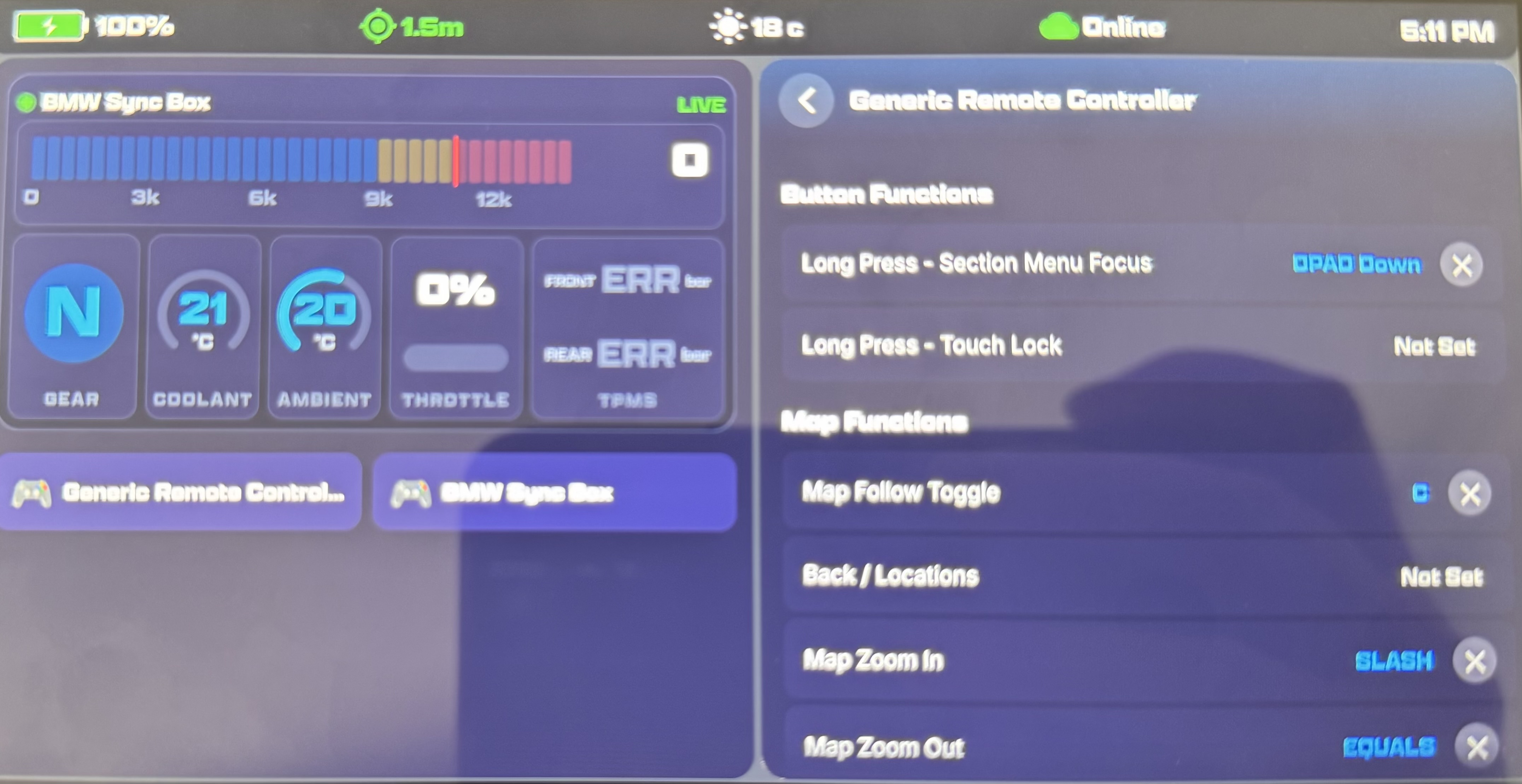
Silverfox (Generic Remote Controller) |
|
|
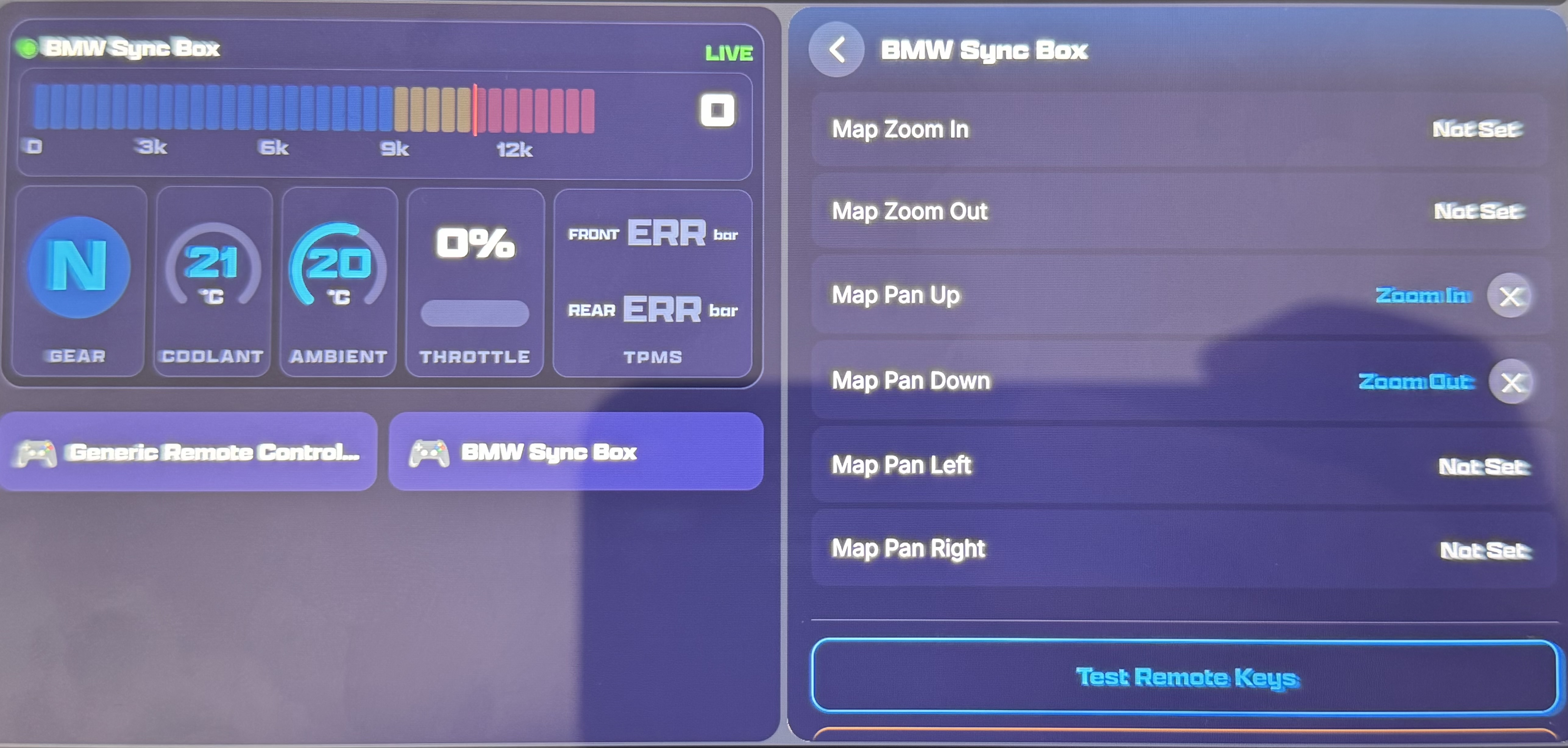
Map PAN/Tilt Aktionen über den Jog shuttle
|
Map PAN/Tilt actions via the jog shuttle
|
|
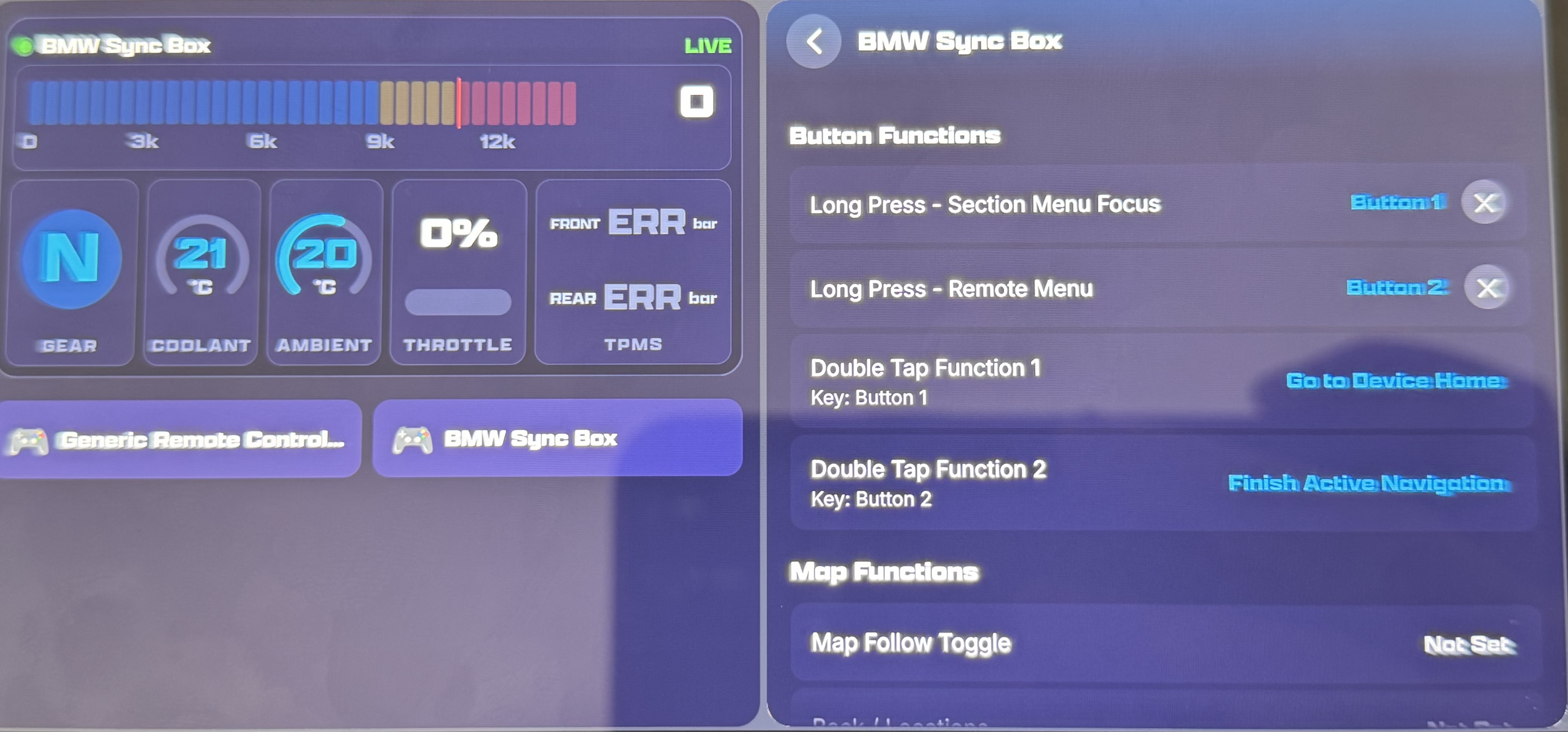
BMW Sync Box |
|
|
die "Double Tap Funktionen" können natürlich nach einem Gusto gesetzt werden.
|
The "double-tap functions" can, of course, be customised to suit your preferences.
|
|
|
|
|
virtuelle Tastatur |
|
|
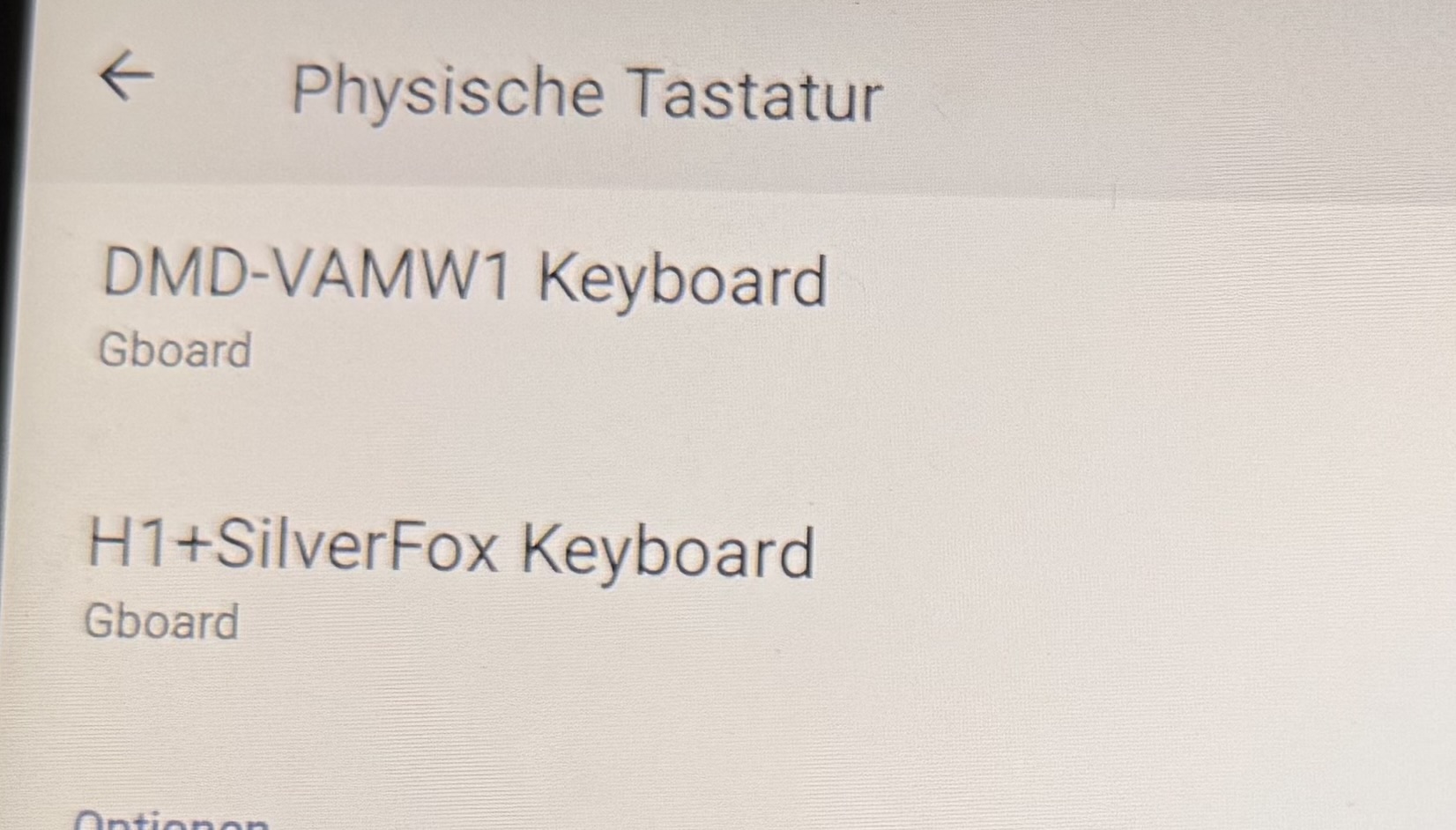
Es war mir nicht möglich die virtuelle Tastatur GBOARD zu aktivieren). Da ich aber auf keinen Fall darauf verzichten wollte habe ich eine Alternative aus dem Playstore installiert.
In meinem Fall die classic Tastatur mit großen Buttons. Diese dann auch für ~40€ als lebenslang Premium App.
Das GBOARD lies sich im übrigen auch nicht aktivieren als ich testweise eine USB Tastatur an das Nor7e angeschlossen hatte.
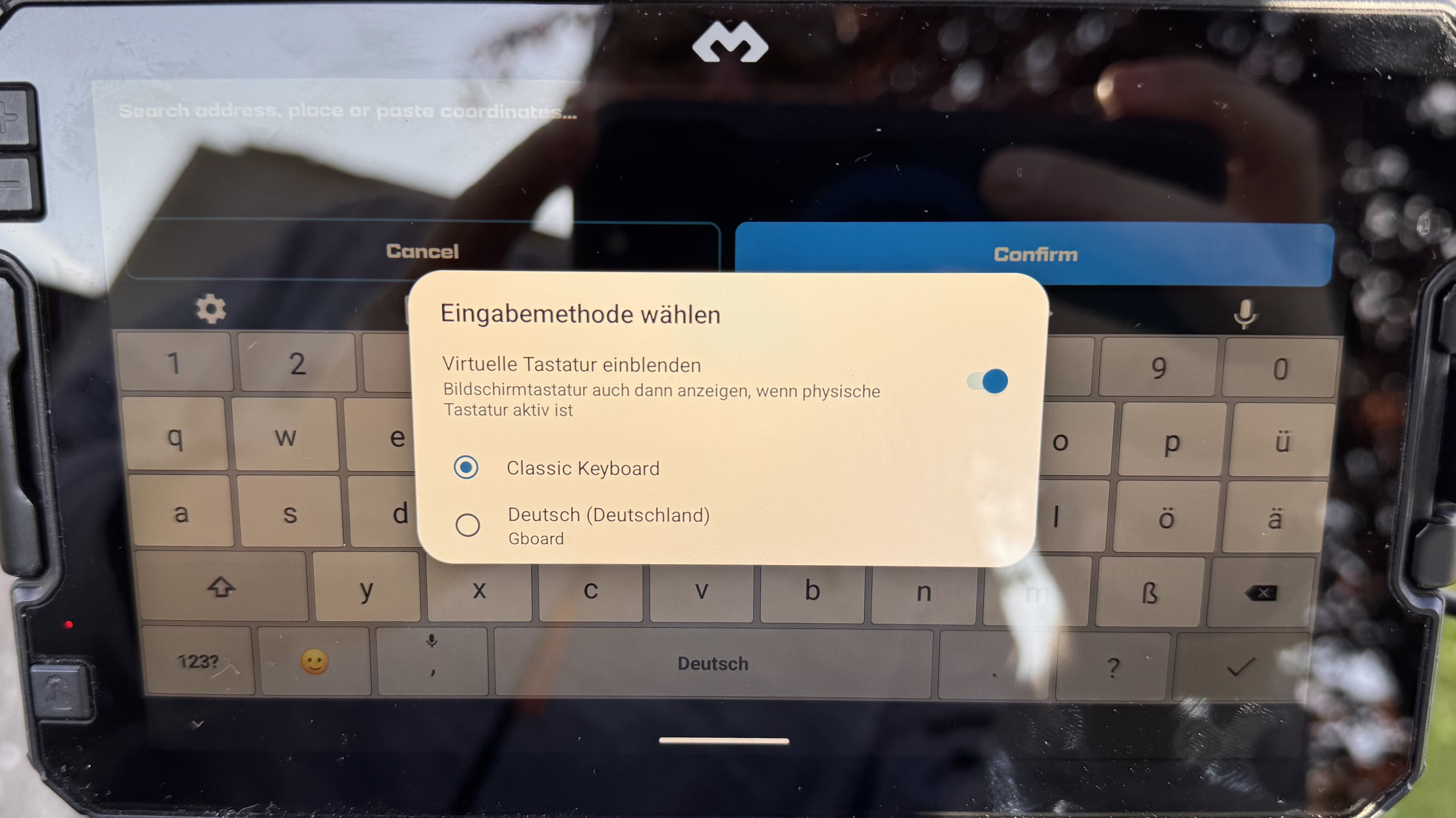
Nach der Installation muss diese einmalig als virtuelle Tastatur gesetzt werden. Hierzu eine Eingabefeld öffnen und unten rechts auf das Tastatur Symbol klicken.
Dort die erste Option aktivieren und das alternative Keyboard auswählen.
Anmerkung: Das Classic Keyboard muss über die Einstellungen konfiguriert werden. Aus die Sprache muss zuerst installiert werden solange es nicht Englisch sein soll. Nach der Konfiguration "beenden erzwingen" und in einem Eingabefeld erneut öffnen. |
I wasn’t able to activate the GBOARD virtual keyboard. However, as I definitely didn’t want to do without it, I installed an alternative from the Play Store.
In my case, it was the Classic Keyboard with large buttons. I then purchased this as a lifetime premium app for around €40.
Incidentally, I couldn’t activate GBOARD either when I connected a USB keyboard to the Nor7e for testing purposes.
After installation, you need to set it as the virtual keyboard once. To do this, open an input field and click on the keyboard icon in the bottom right-hand corner.
There, select the first option and choose the alternative keyboard.
Note: The Classic Keyboard must be configured via the settings. The language must be installed first if you do not want to use English. After configuration, ‘force close’ the app and open it again in an input field. |
|
|
 |